Hands-On in the Studio
A step-by-step tutorial for the Studio, the academy's authoring screens. Create a module, fill its tabs, write the body, add an assignment, build a self-grading quiz, and submit it for review.
What you'll learn
- How to find the Studio and move between its three sections: Journeys, Modules, and Assignments.
- How to create a module draft and fill the General, Body, Resources, and Assignments tabs.
- How to add an assignment and pick its verification method on the Details tab.
- How to build a self-grading quiz on the Quiz tab: questions, correct options, a pass percent, and a draw count.
- How to save, submit your draft, and read its status as it moves from draft to in-review to published.
Overview
This is where your plan becomes a real module a learner can open. The Studio is the academy's set of authoring screens. It is for writing and organising content; it is not a code editor and there is no place in it to run XRPL transactions, because learners practise on the public testnet and the academy checks the artifacts they bring back. In this tutorial you will create one module from start to submit. Have the exercise brief you wrote earlier in this journey next to you; you are going to build it.
You need the instructor role to use the Studio. If you went through the signup in Welcome to Oasis, you have it.
Step 1: Open the Studio
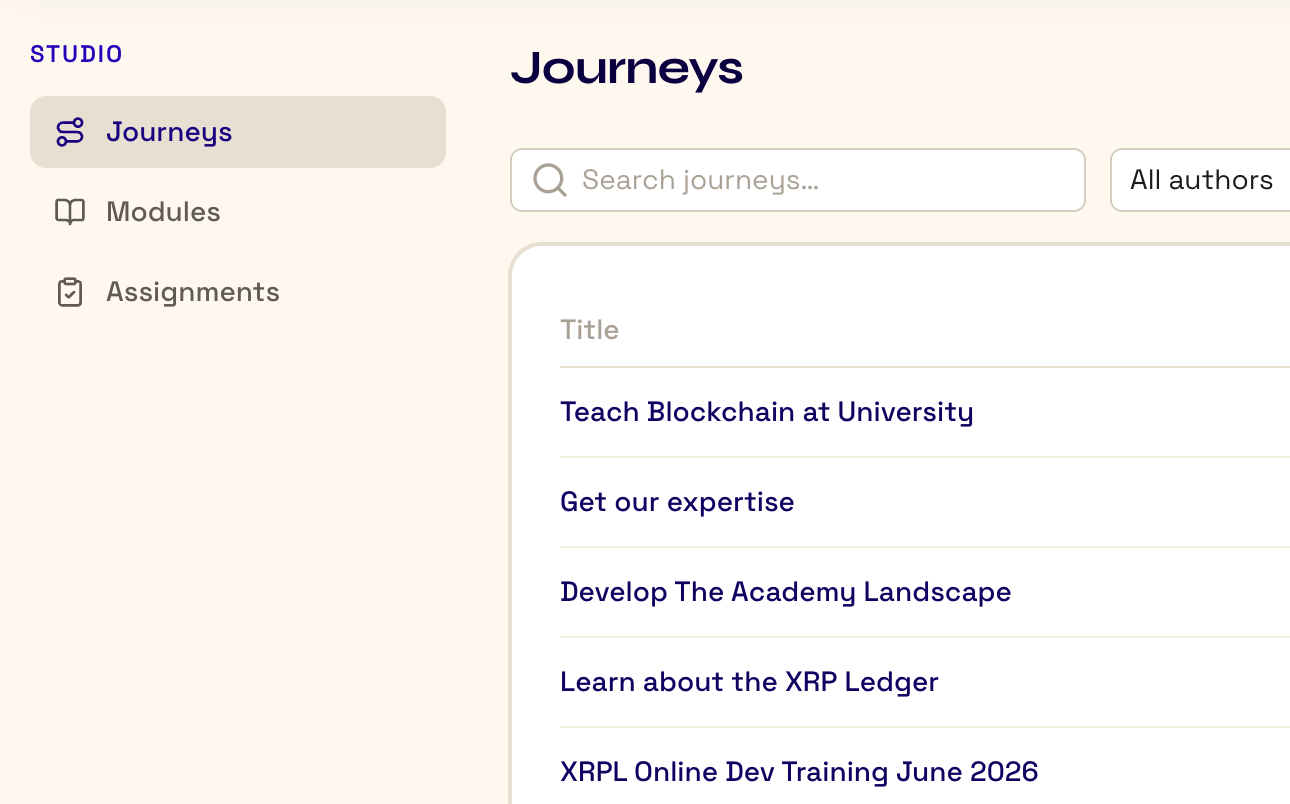
Go to /studio. The left side has three sections: Journeys, Modules, and Assignments. These are the three things you can author. Click Modules.
Step 2: Create a module
On the Modules screen you see your drafts, each with a status badge, and a New module button. Click it.
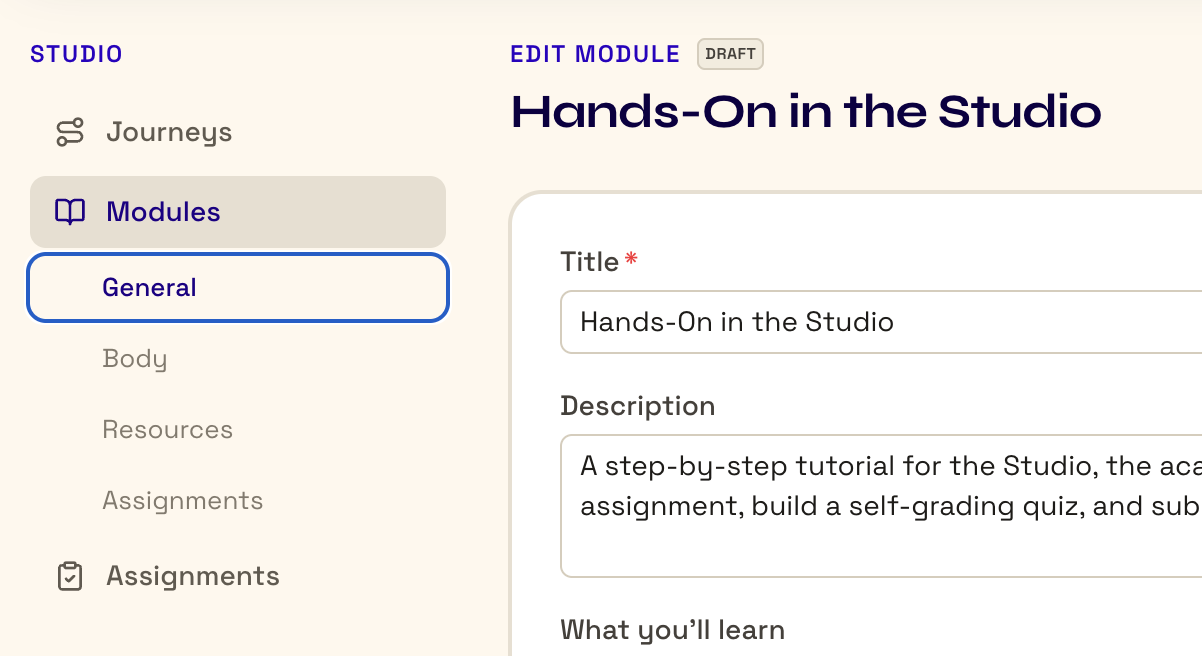
The module editor opens with four tabs across the top: General, Body, Resources, Assignments. Work through them left to right.
Step 3: Fill the General tab
This tab is the identity of the module:
- Title and Description.
- What you'll learn: your outcomes, one per line. Write each as something a learner can do.
- Tags, Duration, and Prerequisites (pick the modules that must come first from the list).
Step 4: Write the Body
Open the Body tab. This is a markdown editor with a live preview, and a button to upload and insert images.
Follow the house structure: open with ## Overview, teach in ## sections with one idea each, and close the teaching with a ## Check that names the artifact and how it is verified. Write so a learner with no teacher in the room can follow it.
Step 5: Add Resources
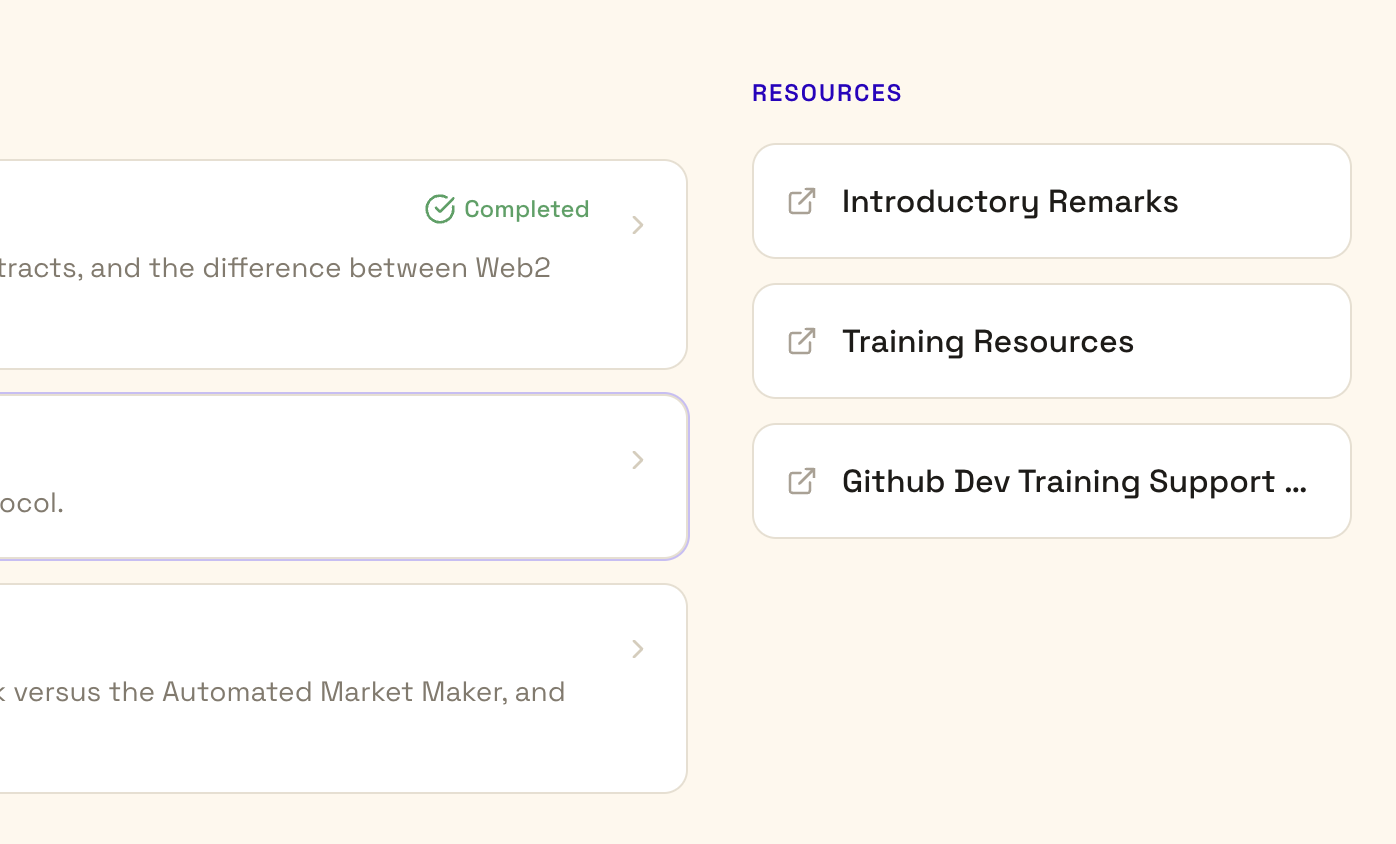
Open the Resources tab and add any supporting links. Each row is a title, a URL, and a type (article, doc, repo, tool).
Step 6: Add an assignment and pick its method
Open the Assignments tab and click Add assignment. Each assignment opens its own editor with three tabs: Details, Quiz, Criteria.
On Details, set the title, the instructions, and the verification method:
- self: the learner confirms their own work.
- peer: a classmate reviews it against your rubric.
- mentor: an instructor reviews it.
- external: the platform checks the learner's on-ledger activity automatically (set this up on the Criteria tab).
- quiz: auto-graded (build it on the Quiz tab).
Pick the method that matches what the task asks. A quick practice check can be self; a real artifact is usually peer or mentor.
Step 7: Build a quiz that grades itself
If you chose quiz, open the Quiz tab. Add questions; each is single-answer or multiple-answer, with its options, and you mark which option(s) are correct. Set a pass percent, and optionally a draw count (how many questions to pull at random for each attempt).
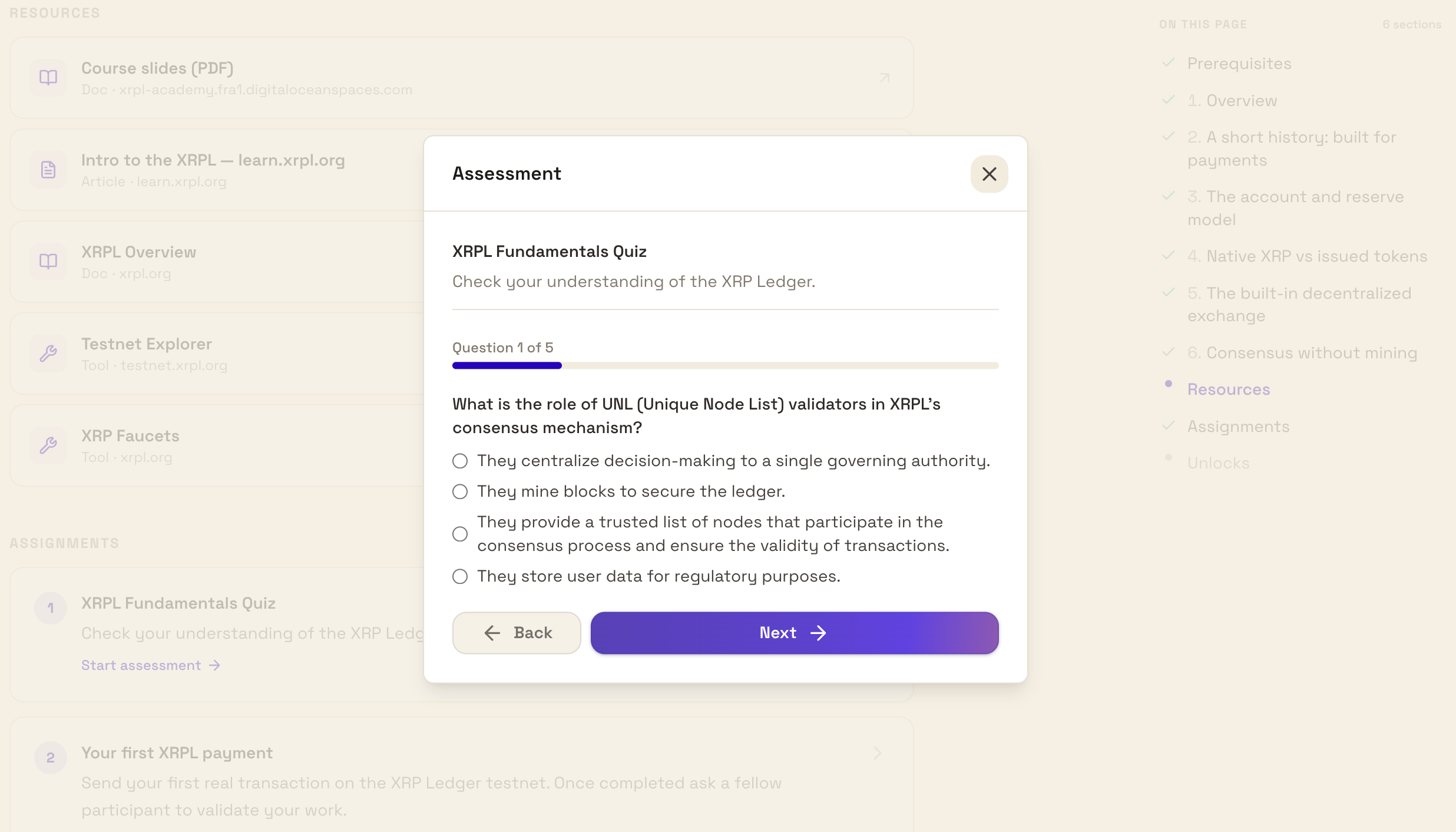
The correct answers stay on the server and never reach the learner's browser, and a passing quiz completes the assignment on its own. After you build it, take it once in the learner view to confirm it grades the way you expect.
Step 8: Save, submit, and watch the status
Save your work with the Save button at the top. While you are still working, the module is a draft and you can edit everything. When it is ready, click Submit. The status badge changes to in-review, and an admin will either publish it or send it back as rejected with a note.
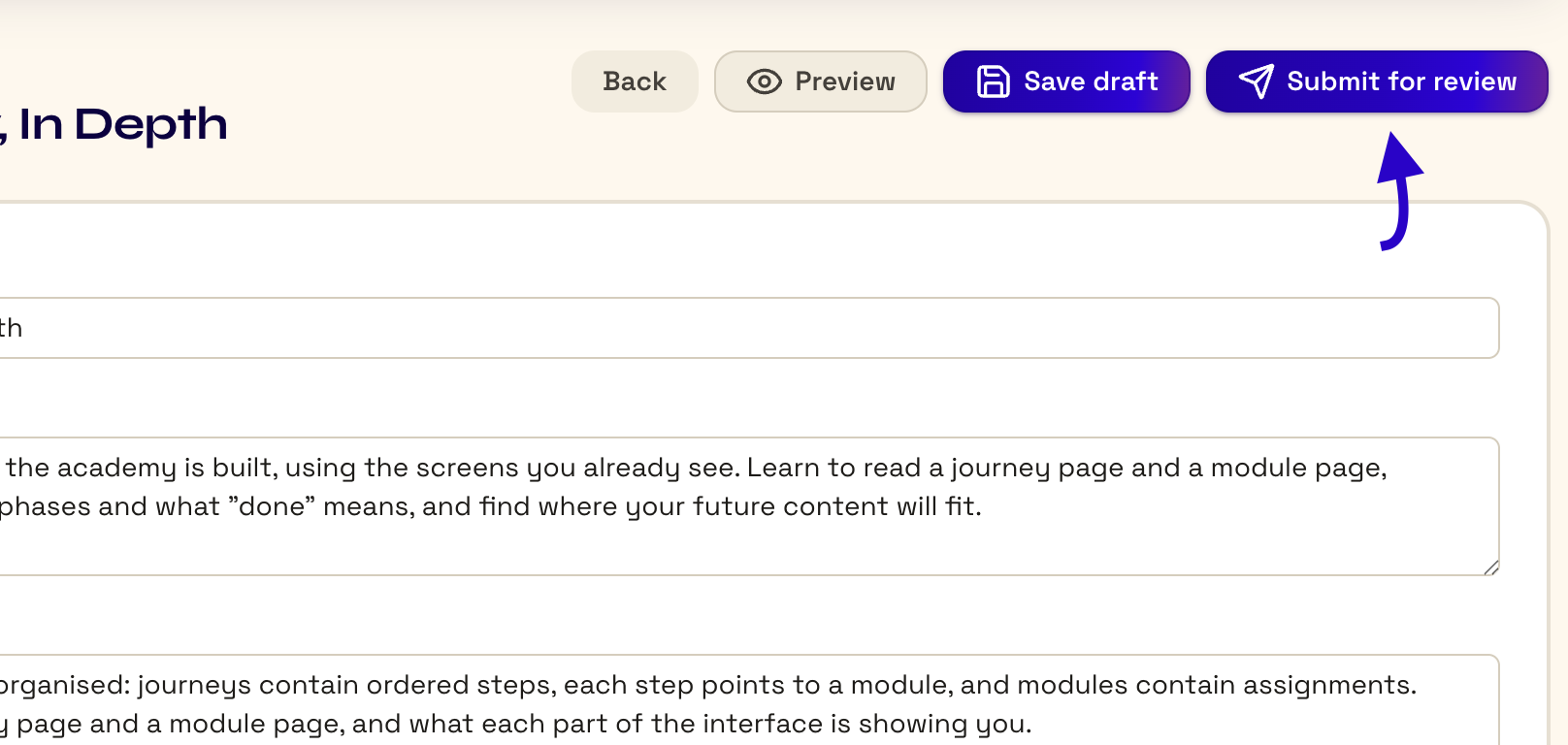
Submitting is asking for review, not finishing. The next module is about getting through that review well.
Check
You are done when you have built a real module in the Studio, not just read how. Take your exercise brief and create it as a module: fill the General tab, write the Body, add the Check, add at least one assignment with a method you chose on purpose, add a quiz if it fits, then submit it. The artifact is the submitted draft. Share a link or screenshots with a peer and have them confirm two things: the module is complete enough to review, and the method you picked for the assignment fits what the task asks.
Appears in